MikroTik: The Basics
Using something new for the first time can be daunting and using the MikroTik RouterOS can be quite complex. This guide I hope will make it less complex and less of a headache! first we need to talk about have we can connect to our router for the first time and one of those ways is via winbox this is one of many ways you can connect there is the web interface method, SSH, TELNET, API..
In this tutorial we will concentrate on winbox which offers us a GUI interface to navigate and we may dabble in using the terminal toward the end to give you an idea where and what it can do. firstly you are going to need to download winbox if you have not already done so click here. after you have been able download and run you will be presented with a few options the main 3 are at the top: Connect To: Username: and Password:
If you have connected your computer/laptop to your router for the first you will need to plug in an ethernet cable into usually ether2 and not ether1 this is because most routers out of the box will have a default configuration applied to the router which will be firewalled which we will explain a little later on in the article.
Once you have your laptop/computer setup and if your interface has been set to DHCP your device should get an IP address if it does not check out our article on how to manually set an interface. you can now connect to your router using the following IP Address 192.168.88.1 in the Connect To:Text Box the Username: should be admin and the Password: should be blank by default (unless you have bought a new router recently as they now have a default password checkout our article on this click here)
"That's one small step for man, one giant leap for mankind,"
spoken by Neil Armstrong 1969.
This quite can be what people feel like when jumping into RouterOS for the first time! Right! You are now connected and most likely seeing a splash screen that gives you the option to remove all the config or not which is handy once you are all ready to do it all from scratch or are doing some that's more in-depth but we are going to use the existing config for the first time to get an idea of the interface.
On the left hand side you will see a long list of menu options with even more options on top of more options! (we did say in our article MikroTik Multi Tool Router).. We will first learn the quick way which for a lot of general networks like a BT full Fiber solution or even Lease Line where it's a fully routed network the "cheat" method will do the job! we will start with Quick Set its fairly sell explanatory but we will go throw the different options and how they effect the config on the router.
Quick Set
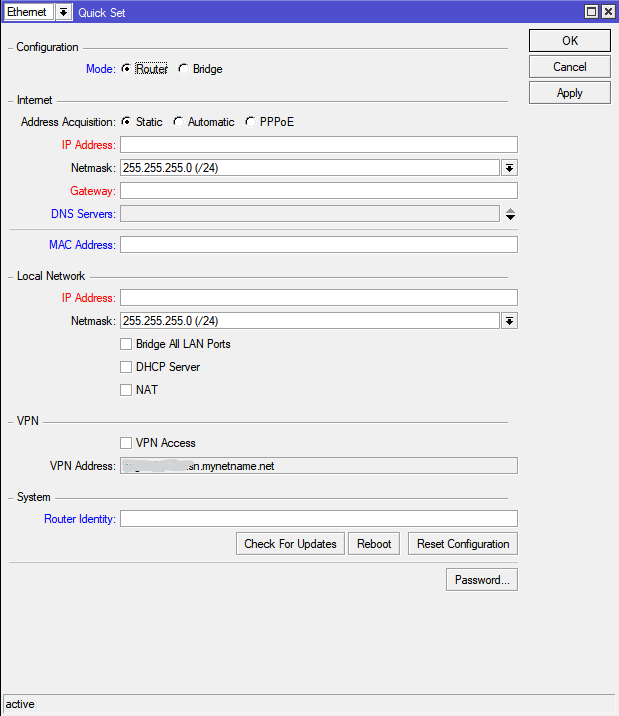
These settings are the basic/general way to setup a router. its quick and simple and for the most part perfectly fine for a basic setup. but we are going to try and dig deeper! but first lets explain each setting and what they do:
but before we have a deep dive into Quick Set We need to understand the dropdown menu at the top. there is multiple flavours is one way to describe
Configuration
There are 2 Modes: Router, Bridge
Router- The option enables (1 port usually
ether1) for routing and also enables the firewall with basic firewall filter rules to secure the router.
- The option enables (1 port usually
Bridge- This will put all the ports (including WiFi ports) into a
bridgethis will meanforwardingrules will be ignored butinputrules will have an effect. the use for this would be if you intend the your router is act as a layer2-3 switch.
- This will put all the ports (including WiFi ports) into a
Internet
Port- Simply the port you wish to use for your internet traffic
Address AcquisitionStatic- In this state you will be required to add in details provided by your Internet service provider which usually IP blocks.
- Note: This may not work for BT Lease Lines where they supply a /31 or 255.255.255.254 subnet you may need to add this in manually the /31 address spacing is a method of reducing IP usage. check out the section on manually adding IP Addresses.
IP Address,Netmask,Gateway,DNS Servers
Automatic- As implied its a
DHCP-Clientto enable the port to automatically apply the IP address from a remote DHCP source.
- As implied its a
PPPoE- PPPoE (Point-to-Point Protocol over Ethernet) is a network protocol used by Internet service providers to deliver internet access over Ethernet connections. It wraps PPP frames inside Ethernet frames, allowing features like user authentication, encryption, and IP address assignment, which are especially common with DSL and fiber connections. Essentially, PPPoE lets multiple users share the same physical network while still having individual, secure connections managed by the ISP.
PPPoE User,PPPoE Password,PPPoE Service Name- The username and password should be self explanatory but the
PPPoE Service Namemaybe set by your ISP and may require you to set it. some providers do not require the name for you to conenect but will supply it once your device in connected.
- PPPoE (Point-to-Point Protocol over Ethernet) is a network protocol used by Internet service providers to deliver internet access over Ethernet connections. It wraps PPP frames inside Ethernet frames, allowing features like user authentication, encryption, and IP address assignment, which are especially common with DSL and fiber connections. Essentially, PPPoE lets multiple users share the same physical network while still having individual, secure connections managed by the ISP.
MAC Address- A MAC (Media Access Control) address is a unique hardware ID for your network devices (phones, laptops, etc.), acting like a digital fingerprint to ensure data goes to the right place on a local network, set by the manufacturer and usually seen as 12 hexadecimal digits (e.g., 00:1A:2B:3C:4D:5E). It identifies your network card (NIC) and differs from an IP address (which changes and directs traffic over the internet), with devices often having multiple MAC addresses if they have different network connections (Wi-Fi, Ethernet).
- In some cases like in the case of SkyBB and some other providers you require a specific MAC address to connect. you will require the MAC address that's usually supplied via the old routing hardware.
Firewall Router- Enabled the firewall functions for your router (usually just adds the basic rules)
Discovery- As the name implies enables the discovery elements including Neighbor List functions for device discovery.
Local Network
IP Address,Netmask,Bridge All LAN Ports,DHCP Server,NAT- Firstly shameless plug time! We have a tool for this! click here to check it out! it will give you a full breakdown for IP's and there subnet details it's a powerful tool.
IP Address- An IP address (Internet Protocol address) is a unique numerical label assigned to a device on a network to identify it and enable communication with other devices. It works like a digital mailing address, telling data where to come from and where to go, so information can be routed correctly across local networks and the internet.
- The usual default IP for MikroTik RouterOS is
192.168.88.1the default subnet/24often the IP address is assigned to thebridgeinterface.
Netmask- A subnet mask is a number used with an IP address to determine which part identifies the network and which part identifies the device (host). It helps networks group devices and control how data is routed by defining whether traffic should stay within the local network or be sent to another network.
- As this is a dropdown menu which the default usually set
255.255.255.0.This would give you a total number of 256 IP's of which: 1 being the subnet the default usually being192.168.88.0the last being the broadcast192.168.88.255with a total of 254 usable addresses. This starts at192.168.88.1 - 192.168.88.254now because the initial IP is going to be used as the router IP192.168.88.1. - Note: In a routed network, the router interface must use a valid, unused IP address within the assigned subnet (for example,
192.168.88.45or192.168.88.78). Network and broadcast addresses cannot be used. In PPPoE setups, IP addresses are usually assigned automatically rather than manually selected.
Bridge All LAN Ports- Simply adds all LAN ports to the same
bridge
- Simply adds all LAN ports to the same
DHCP Server- Enables the DHCP service and will start to respond to DHCP request messages
NAT- Network Address Translation (NAT): Translates private (local) IP addresses on an internal network to one or more public IP addresses on an internet-facing interface, allowing internal devices to communicate with the internet.
VPN
VPNVPN Access,VPN Address- This does not enable the VPN services but does enable the DDNS service. VPN Address usually starts with the serial number of the device
serialnumber.sn.mynetname.net
- This does not enable the VPN services but does enable the DDNS service. VPN Address usually starts with the serial number of the device
System
Router Identity- Simply the name you want to use for the device. We have a great naming policy guide that can help you in naming your network devices.
Conclusion
The above sounds and looks complicated but in truth its not really want I wanted to do with this was give you as much information and explain as much about the Quick Set function but this is only one option vs the many depending on the hardware you have purchased. It can and does save time but you really need the knowledge to wrap your head around these power house of routers!
Recent Articles
Networking: VDLS How it works
VDSL is a type of broadband internet that delivers data over existing copper telephone lines, similar to ADSL—but much faster over short distances.
Networking: Why VLANs Aren’t Just for Enterprises
Virtual Local Area Networks (VLANs) allow businesses to logically segment their network without requiring separate physical infrastructure
Access Control: Paxton Net2
Why Paxton should be your pick for access control
Networking: PPPoE all you need to know and more!
PPPoE (Point-to-Point Protocol over Ethernet) a handy tool in your networking toolbox
MikroTik: CRS112-8P-4S-IN Port security and DHCP Spoofing Protection
This switch really is a Swiss Army knife — but like any multi-tool, it has its quirks
Networking: Keep an eye on your network
Why it's important to keep an eye on your network and what's the steps can you do to be proactive.
Cloud Solutions: are not your friends!
One thing that's over looked in recent times because of convenance is the cloud.
MikroTik: The Basics
The Basics are important when setting up a router for the first time.
Mikrotik: The multitool router option!
Not just a router but a powerhouse of routing, VPN and much more!